Steam Deck Setup Tips: Getting the Most Out of SteamOS
Practical configuration tips for new Steam Deck owners, covering storage management, battery settings, and installing games beyond the Steam store.
Practical configuration tips for new Steam Deck owners, covering storage management, battery settings, and installing games beyond the Steam store.
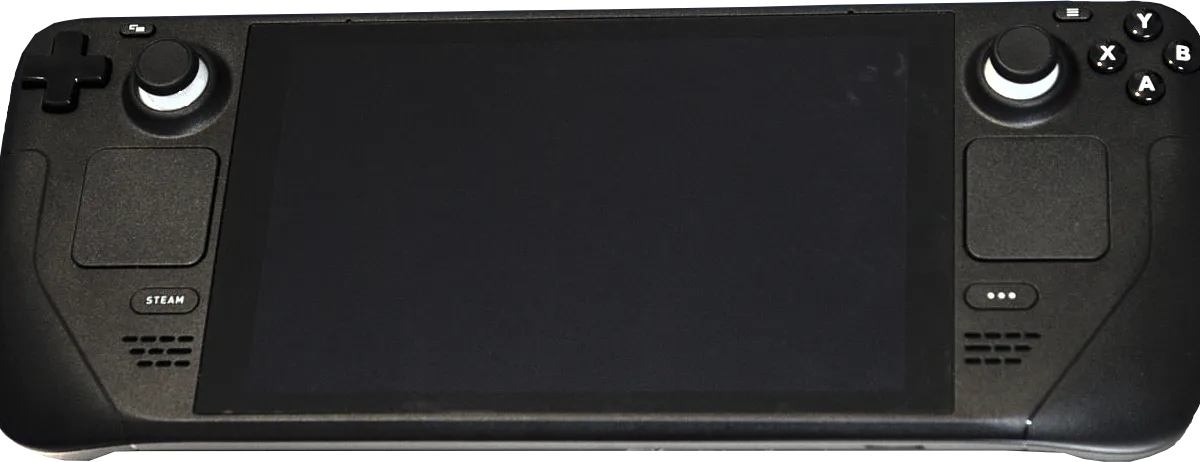
Photo by Liam Dawe/GamingOnLinux, PNG version by VulcanSphere / Wikimedia Commons / CC BY-SA 4.0
Getting a new Steam Deck out of the box and updated is the easy part — a bit of early setup work makes a real difference in how smooth the day-to-day experience feels afterward.
First Things to Configure
Before diving into your library, run any available system software update, since SteamOS updates regularly bring performance improvements and compatibility fixes for specific games. It’s also worth reviewing the display and control settings menus once up front, since defaults aren’t always tuned for every game genre — trackpad sensitivity, gyro controls, and button remapping are all adjustable per-game through Steam’s overlay, and spending a few minutes here for your most-played titles pays off over dozens of hours of play.
Managing Storage with microSD and Cloud Saves
Once your library grows, storage management becomes an ongoing task rather than a one-time decision. A few habits help:
- Install actively played games on the fastest available storage, and move rarely played or finished games to a microSD card or uninstall them entirely.
- Turn on Steam Cloud saves for supported games so progress carries over cleanly between reinstalls or between playing on Steam Deck and a PC.
- Periodically check which installed games you haven’t touched in a while — it’s easy to forget how much space old installs are quietly holding onto.
Battery Life Settings That Matter
A handful of settings have an outsized effect on how long a charge lasts:
- Frame rate limits: capping frame rate in less demanding games avoids burning battery on performance you won’t visually notice.
- Screen brightness and refresh rate: lowering brightness in dim environments and reducing refresh rate for games that don’t need a high one both meaningfully extend battery life.
- Per-game power profiles: SteamOS allows saving different performance settings per game, so a demanding title and a lightweight one don’t have to share the same power ceiling.
- Wireless radios: turning off Bluetooth or Wi-Fi when you don’t need them (for example, on a long offline handheld session) trims a small but real amount of battery drain.
Installing Non-Steam Games and Other Storefronts
Because SteamOS is built on a full desktop environment underneath its console-like interface, it’s possible to install other PC storefronts and their games, though the setup process is more involved than simply buying through Steam and typically requires switching into desktop mode. This flexibility is a real advantage over a closed console ecosystem, but it also means troubleshooting compatibility issues is more of a hands-on, DIY process than console gaming typically requires. If you’re not comfortable with basic PC troubleshooting, it’s fine to stick to the Steam library and skip this entirely — you’re not missing anything essential to the core experience.
Bottom Line
A little time spent on updates, per-game control tweaks, and battery settings in the first week pays off across every session afterward. Treat storage as something to actively manage rather than a one-time purchase decision, and only venture into desktop mode and non-Steam storefronts once you’re comfortable with the basics.
Our picks: Steam Deck accessories
Shop on Amazon
Affiliate links.As an Amazon Associate I earn from qualifying purchases. Links below go to Amazon; prices and availability change, so check Amazon for current pricing.Affiliate disclosure



Illustrative photos: Photo by Liam Dawe/GamingOnLinux, PNG version by VulcanSphere / Wikimedia Commons / CC BY-SA 4.0; Photo by Evan-Amos / Wikimedia Commons / Public domain