How to Keep Your Gaming PC Hardware Clean and Running Cool
Dust and poor airflow quietly degrade PC performance over time. Here is a practical routine for cleaning and cooling maintenance that protects your hardware.
Main page for gaming pcs: Gaming PCs →
Dust and poor airflow quietly degrade PC performance over time. Here is a practical routine for cleaning and cooling maintenance that protects your hardware.
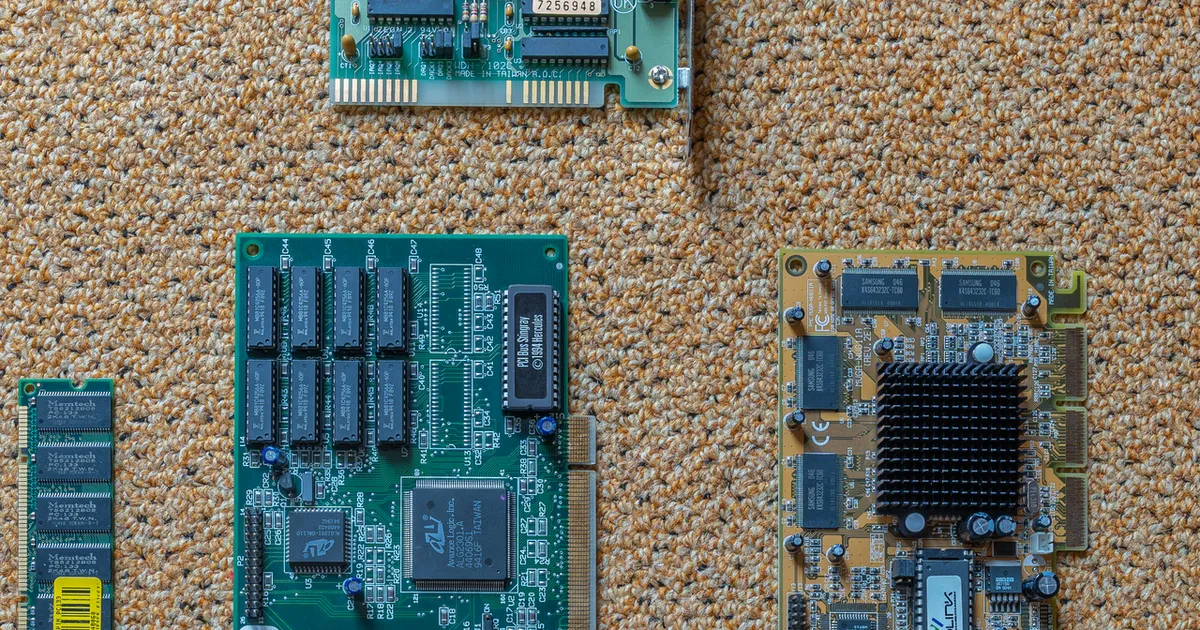
Photo by PantheraLeo1359531 / Wikimedia Commons / CC BY 4.0
Hardware maintenance rarely gets attention until performance visibly degrades, but by the time that happens, dust buildup and poor airflow have usually been quietly working against your system for months. Unlike a driver update or a settings tweak, physical maintenance is something you do a few times a year, and it’s one of the simplest ways to protect the lifespan and performance of hardware you’ve already paid for.
Why Dust Is a Bigger Deal Than It Looks
Dust accumulating on fans, heatsinks, and inside vents does more than look messy — it acts as an insulating layer that traps heat against components that are specifically designed to shed it. As dust builds up, fans have to work harder and spin faster to maintain the same cooling performance, which often shows up first as a louder PC before it shows up as a performance problem. Left unaddressed for long enough, that trapped heat can force components to throttle their performance to stay within safe temperature limits, which directly reduces the frame rates and responsiveness you’d otherwise get from that hardware.
A Simple Cleaning Routine
Cleaning a gaming PC doesn’t require disassembling the whole system. A practical routine includes:
- Using compressed air to blow dust out of fans, heatsinks, and vents, holding fan blades still while spraying to avoid over-spinning them.
- Wiping down dust filters, if your case has them, and rinsing or vacuuming them separately from the compressed-air pass.
- Checking cable routing to make sure cables aren’t blocking airflow paths inside the case.
- Doing this every few months for most environments, and more frequently in dusty or pet-heavy households.
Always power down and unplug the system before cleaning, and avoid using a household vacuum directly on internal components, since it can generate static electricity that’s risky for sensitive hardware.
Airflow Matters as Much as Cleaning
Even a perfectly clean PC can run hot if airflow through the case is poorly organized. Case fans work as a system — typically pulling cooler air in at the front or bottom and pushing warm air out at the top or back — and that flow can be disrupted by cables bunched in the wrong places, dust filters left uncleaned, or a case that’s positioned against a wall with insufficient clearance for intake or exhaust. Periodically stepping back and checking that your case has clear space around its vents, and that internal airflow isn’t blocked by loose cables, is just as important as the cleaning itself.
Watch Temperatures, Not Just Noise
Fan noise is a useful early warning sign, but it’s not a substitute for actually checking component temperatures using monitoring software during a demanding session. If temperatures climb noticeably higher than they used to under similar workloads, that’s a more reliable signal that cleaning or airflow adjustments are overdue than simply noticing the PC sounds louder than it used to — although in practice the two often show up together.
A Simple Maintenance Schedule
- Every few months: compressed-air cleaning of fans, heatsinks, and vents; filter cleaning if applicable.
- Occasionally: a full airflow check — confirm intake and exhaust paths are clear and cables aren’t blocking flow.
- As needed: temperature monitoring during a demanding session if you notice new noise, heat, or performance changes.
This kind of maintenance isn’t glamorous, and it’s easy to put off indefinitely since nothing forces you to do it. But a clean, well-organized system runs cooler, quieter, and more consistently over its lifespan than one left to accumulate dust — and it costs nothing beyond a little regular attention.
Our picks: Graphics cards & Processors
Shop on Amazon
Affiliate links.As an Amazon Associate I earn from qualifying purchases. Links below go to Amazon; prices and availability change, so check Amazon for current pricing.Affiliate disclosure
NVIDIA GeForce RTX 5070 Ti
16GB card that handles high-refresh 1440p and entry 4K.
Check price on Amazon
Illustrative photos: Photo by Timothy Borkowski / Wikimedia Commons / CC BY-SA 3.0; Photo by Myself User:ZyMOS / Wikimedia Commons / CC BY-SA 4.0; Photo by Advanced Micro Devices, Inc. (AMD) / Wikimedia Commons / Attribution; Photo by Jacek Halicki / Wikimedia Commons / CC BY-SA 4.0; Photo by Ondřej Martin Mach / Wikimedia Commons / CC BY-SA 3.0