How to Think About PC Part Compatibility Before You Buy
Compatibility mistakes are the most common reason a PC build stalls halfway through. Here is how to reason through socket, form factor, and clearance issues before you order anything.
Main page for gaming pcs: Gaming PCs →
Compatibility mistakes are the most common reason a PC build stalls halfway through. Here is how to reason through socket, form factor, and clearance issues before you order anything.
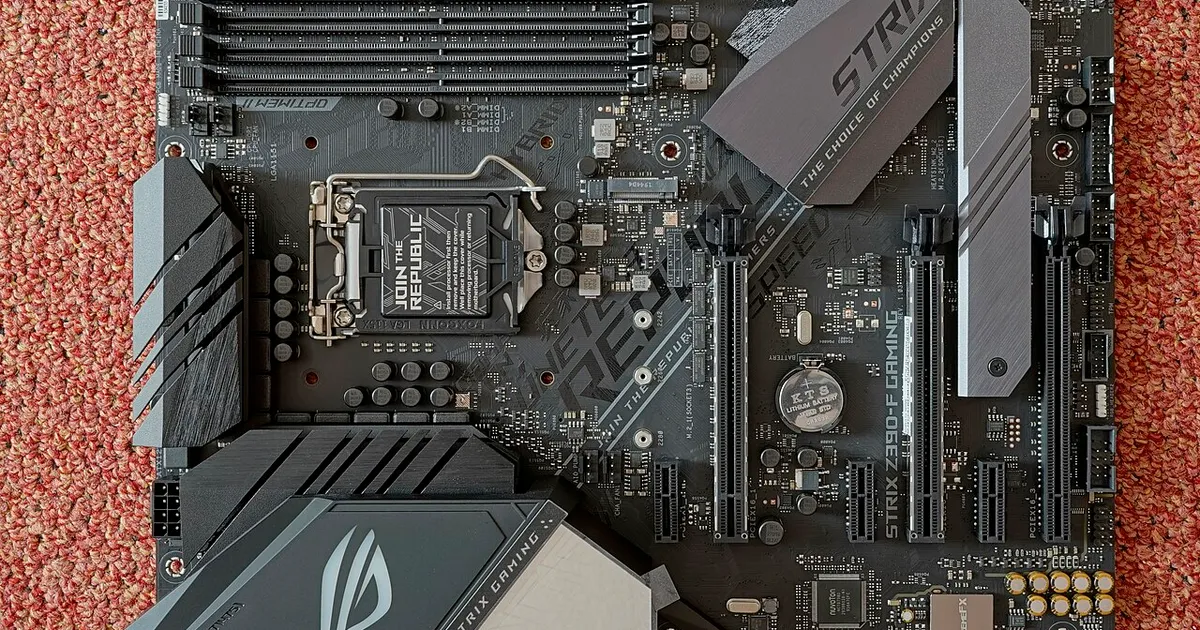
Photo by PantheraLeo1359531 / Wikimedia Commons / CC BY 4.0
Building a PC from individual parts is less about knowing which brand is “best” and more about making sure every piece physically and electrically agrees with every other piece. Most build problems people run into are not performance disappointments — they’re compatibility mistakes that could have been caught with a bit of planning. Before you spend a dollar, it helps to understand the handful of relationships that actually matter.
The CPU and motherboard have to agree on socket and chipset
Every CPU is designed for a specific physical socket, and every motherboard supports only a narrow range of chipsets and, often, only certain generations within a CPU family. A processor that looks like a natural upgrade on paper can be physically incompatible with a board that’s even a generation or two old. The safest habit is to treat the CPU and motherboard as a single decision rather than two separate ones — pick them together, and confirm the exact socket and supported CPU list rather than assuming “newer is compatible with newer.”
Firmware matters too. Even when a socket matches, a motherboard sometimes needs a BIOS update before it will recognize a newer CPU. If you’re pairing a very recent processor with a board that’s been on shelves for a while, that’s worth checking specifically, since a brand-new CPU won’t boot on outdated firmware and you may not be able to update the firmware without a working CPU already installed — a genuinely awkward chicken-and-egg problem.
Memory has its own set of rules
RAM compatibility depends on more than just having the right number of slots. The memory type (older versus newer standards) has to match what the motherboard supports, and motherboards typically have a maximum supported speed and capacity that isn’t obvious from a quick glance at the spec sheet. Running memory faster than a board’s rated support isn’t necessarily impossible, but it’s not guaranteed to work at advertised speeds out of the box, and it may need manual configuration.
Physical space is its own category of compatibility
This is the category people underestimate most. A graphics card needs to physically fit inside the case — in length, height, and thickness — and it needs clear airflow around it. A CPU cooler, especially a tall air cooler, needs clearance from the case’s side panel and sometimes competes for space with the tallest RAM sticks nearby. Radiators for liquid cooling need mounting points that not every case provides. None of this shows up as an “incompatible” error message the way a wrong CPU socket does — it just doesn’t physically go together, and you find out during assembly rather than before.
Power delivery is a compatibility question too
A power supply has to provide enough capacity for the whole system, but it also has to have the right connectors for the specific components you’re using — modern graphics cards often need particular connector types, and not every power supply ships with them natively. Cable length and case size interact here as well: a power supply that’s electrically fine can still be a poor match for a compact case if its cables aren’t built for a tight layout.
A practical way to check before buying
The most reliable approach is to build your part list in an order that resolves compatibility early: settle on the CPU and motherboard together first, then confirm RAM speed and capacity support, then check case clearance against your chosen cooler and graphics card dimensions, and finally confirm your power supply has the right connectors and enough headroom. Doing it in this order means each new part is checked against decisions you’ve already locked in, rather than discovering a conflict after everything has arrived.
The underlying idea is simple: a PC build is a chain of physical and electrical agreements, and it only takes one broken link to stall the whole project. Slowing down at the planning stage is what prevents that.
Our picks: Processors & Motherboards
Shop on Amazon
Affiliate links.As an Amazon Associate I earn from qualifying purchases. Links below go to Amazon; prices and availability change, so check Amazon for current pricing.Affiliate disclosure
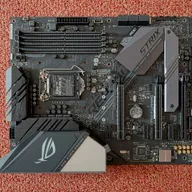
Illustrative photos: Photo by Myself User:ZyMOS / Wikimedia Commons / CC BY-SA 4.0; Photo by Marcin Wieclaw (pcsite.co.uk) / Wikimedia Commons / CC BY-SA 4.0; Photo by Jacek Halicki / Wikimedia Commons / CC BY-SA 4.0; Photo by PantheraLeo1359531 / Wikimedia Commons / CC BY 4.0; Photo by Ondřej Martin Mach / Wikimedia Commons / CC BY-SA 3.0